DEMO GUIDE
StillDeep Camping
Follow a guest’s stay at a fictional campground, from booking to services on site.
Open the desktop →How the desktop works
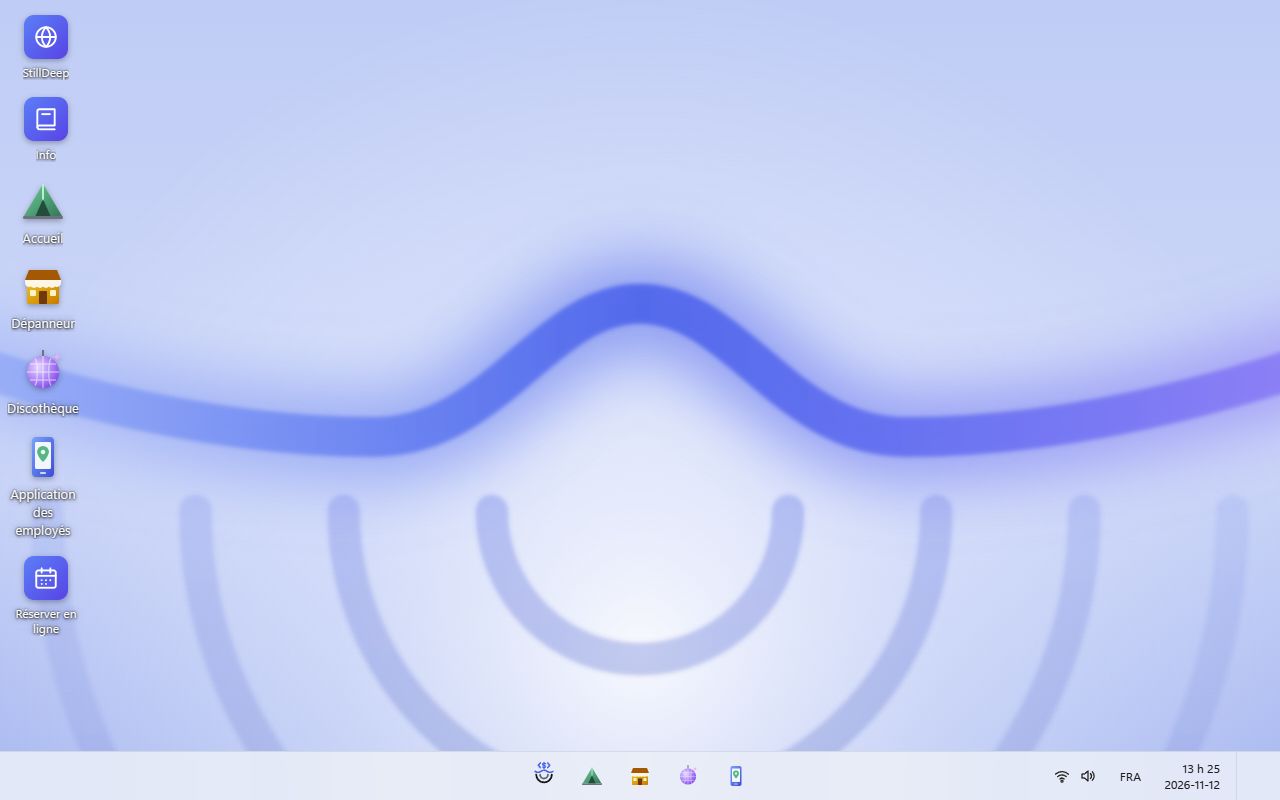
On a computer, double-click an application icon. On a touch screen, tap it. Each window represents a point of sale or a tool. Minimize, maximize or restore windows with the controls in their title bar. The taskbar lets you return to an open application. Change the desktop language with its language button.
A path to try
- Open reception, use the demo account and explore the campground map. Choose a site and dates to try the booking and arrival steps.
- Open the camp store and prepare a test sale. Explore the available options for charging a guest or a site.
- Try the staff app, nightclub or online booking site and compare the information available to each role.
What this demo supports
- Campground reception, bookings, arrivals, departures and guest accounts.
- Camp store, nightclub, hall and sports-court reservations, with the options available in each screen.
- A staff app and online booking interface connected to the same engine.
Choose a tool to try
Keep the desktop open in its original tab while you follow this guide. The screenshots show the French interface; select an image to enlarge it.
Find your way around the desktop
Reception: map, booking and stay
Open Reception, use the offered account and open or resume the shift if asked.
Choose arrival and departure dates, then a map area. Occupancy depends on that date range.
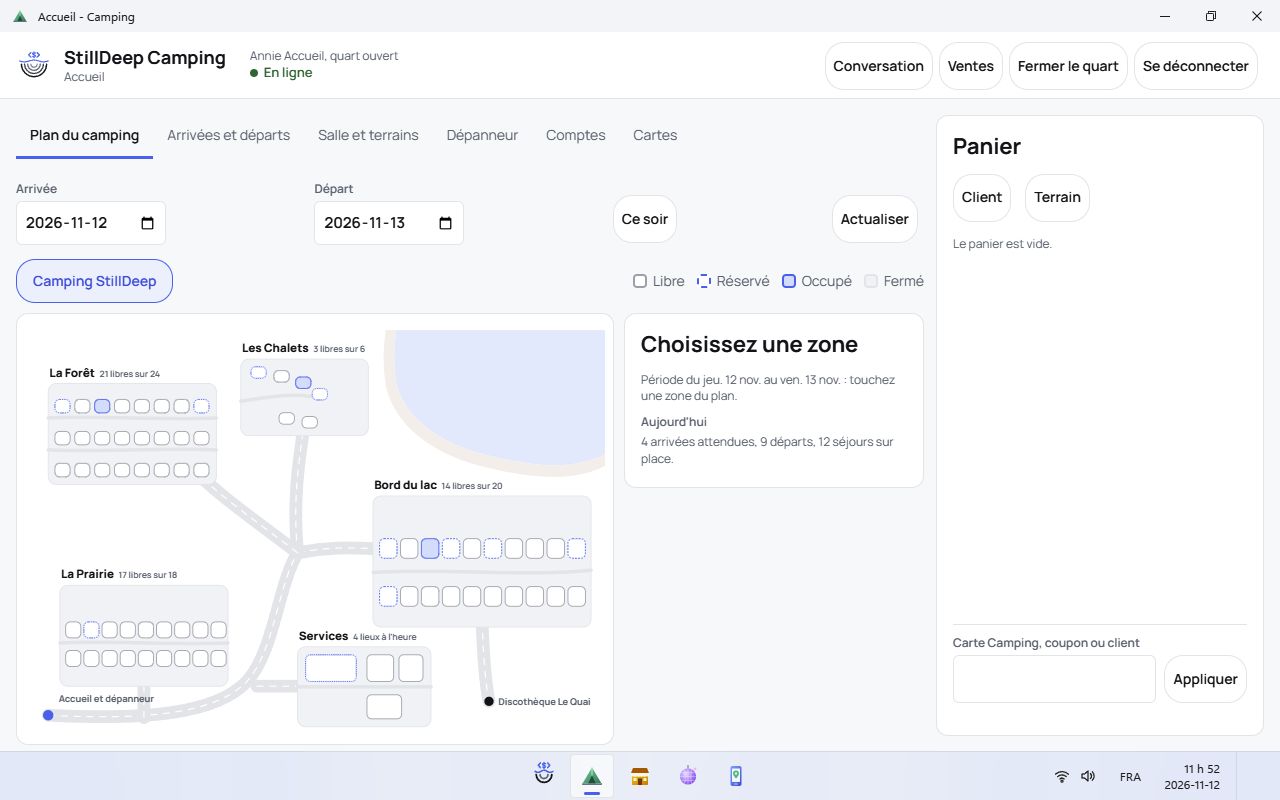
Choose arrival and departure dates, then a map area. Occupancy depends on that date range. Select an available site and follow the form to choose a fictional guest and prepare a booking. Review dates before confirming.
Use Arrivals and departures to find that day’s stays. Open a stay and use its offered check-in or check-out action.
Accounts, Cards, Hall and courts provide the other reception tools. Check the selected guest and location before confirming an operation.
Camp store: prepare a purchase or account charge
Open the camp store and sign in with the register’s test account.
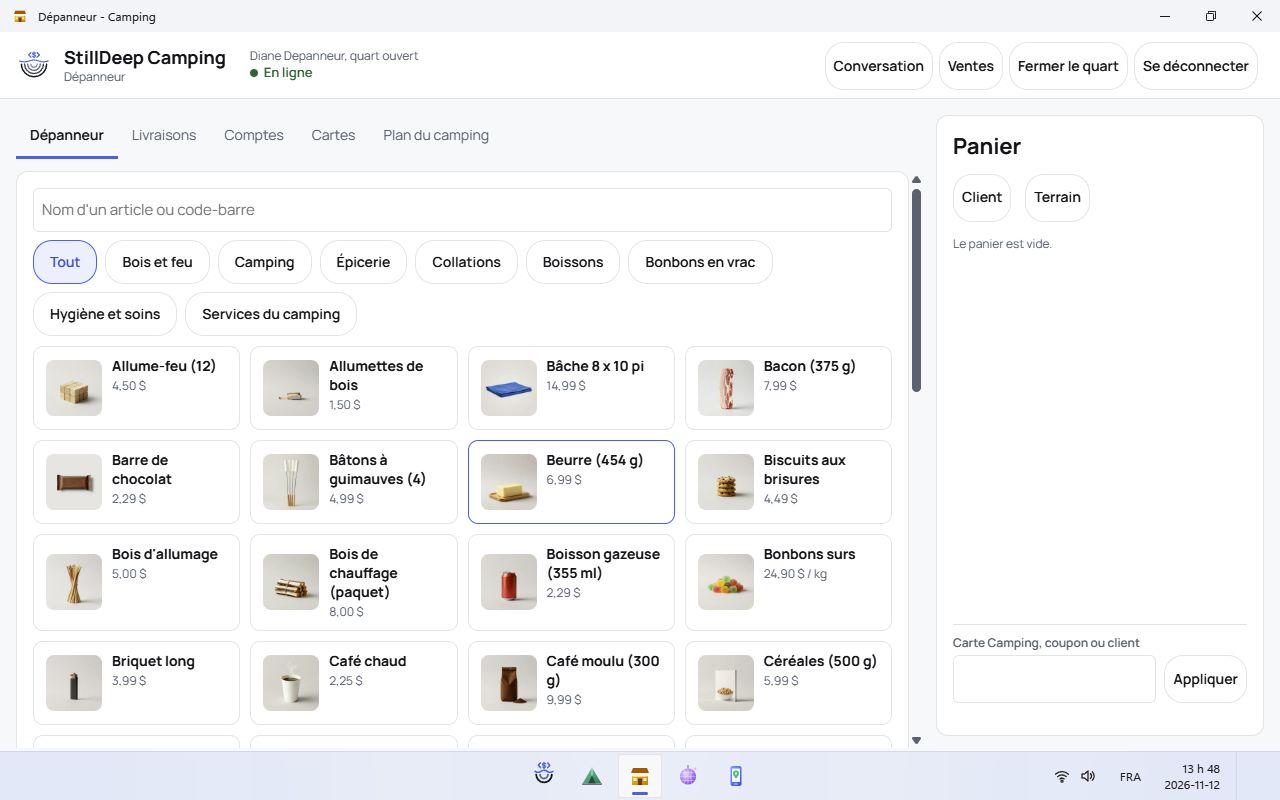
Open the camp store and sign in with the register’s test account. Choose a category and add products. Enter the requested quantity or weight where applicable.
To try an account charge, select the appropriate guest or site and review the charge destination.
Review the total before a test payment, account charge or offered delivery. Cancel the cart to leave without buying.
Nightclub: admission, coat check and bar
Open the nightclub and use the offered account. Open or resume a shift when required.
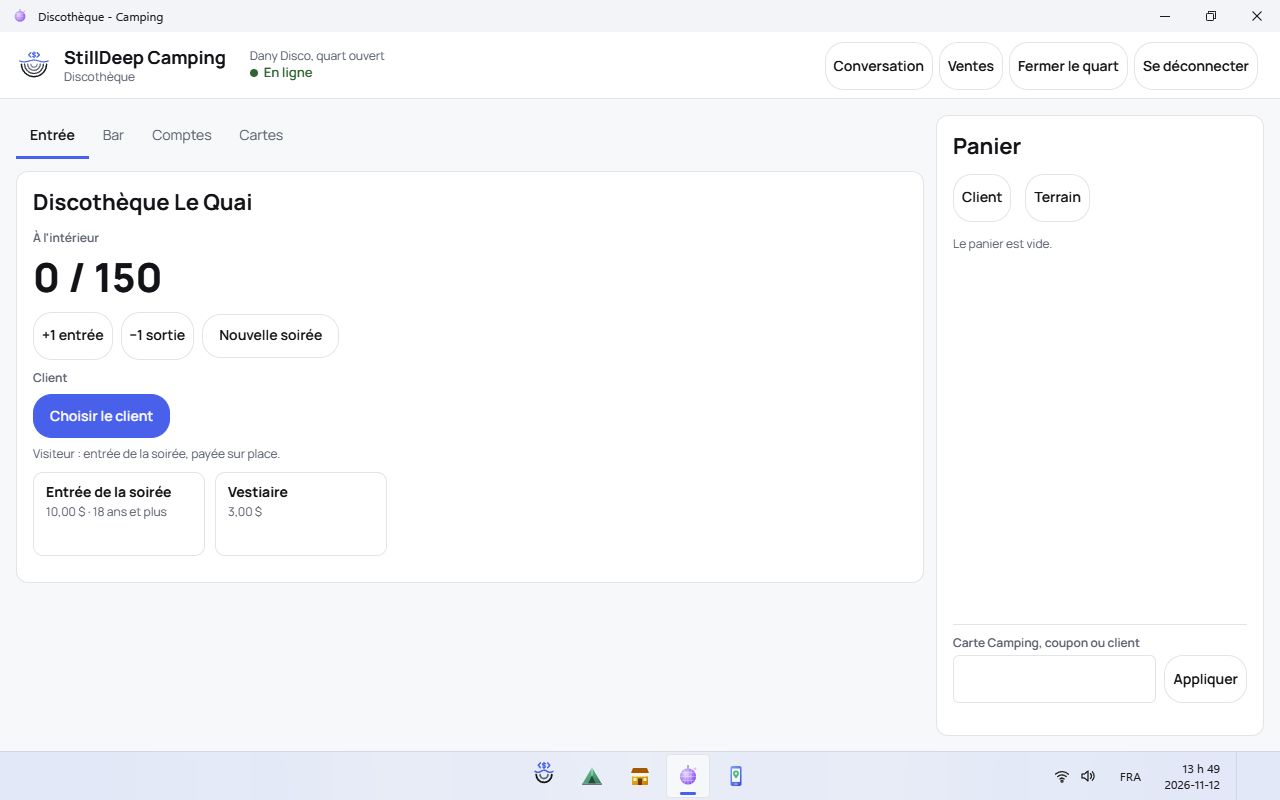
Open the nightclub and use the offered account. Open or resume a shift when required. Choose admission or bar service. For camper admission, select a guest with an active stay; age and eligibility are checked.
Add the admission, coat-check or drink items offered by the interface, then review the cart.
Try an allowed test payment or account charge with fictional information. Do not confirm if you only want to explore.
Staff app: review work to be done
Open the staff app and sign in with the offered demo account.
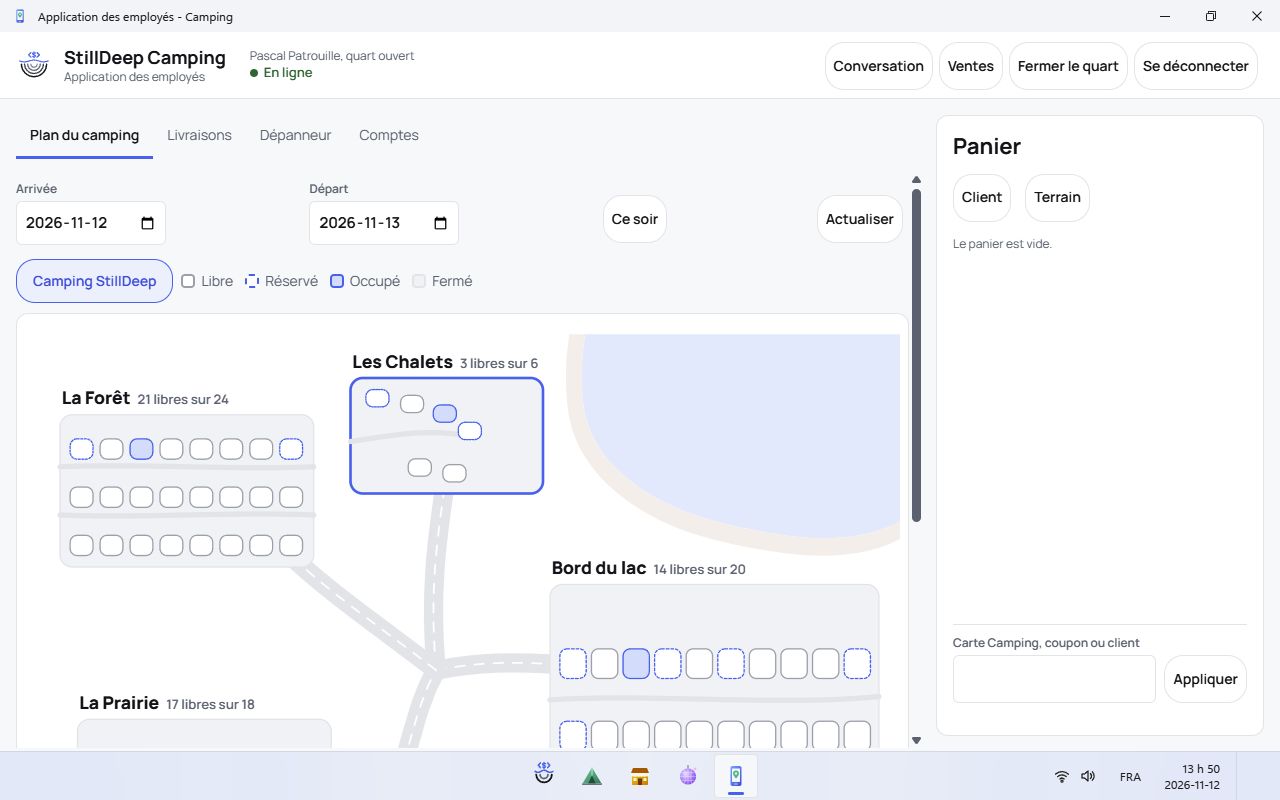
Open the staff app and sign in with the offered demo account. Choose the date, area or team when those filters are offered. Review the tasks shown.
Open a task to read its location and details. Use its status action only if you want to record the change in the demo.
Refresh after a reception operation or new request. An empty task list does not mean the app is broken.
Online booking: the guest journey
Use the desktop’s Book online shortcut to open the guest website.
Choose dates and the site or reservation type. Review availability before continuing.
Follow the website steps with a fictional account and information. Review dates, guests and the displayed terms.
Use only the indicated test payment methods. A confirmed booking then appears in reception’s tools.
Before you test
Use fictional information and only the test accounts and payment methods indicated on screen. Demo data may be shared by visitors: a confirmed sale, booking or stock change can affect the next test. An empty list may mean that a different date, employee or warehouse is selected.
Sites, guests and stays are fictional. Availability depends on the selected dates and existing demo bookings. Only actions present in a screen are part of that interface.
MAKE IT YOUR OWN
The visual interfaces are provided and editable
The example interfaces are available as source code. You can adapt their screens, layouts, colours and visual assets to your own business or brand, under the terms of the example repository’s licence. These demos show different interfaces built on the same StillDeep engine.
The StillDeep engine is proprietary and separate from the example interfaces. Making the interface available does not make the engine open source.